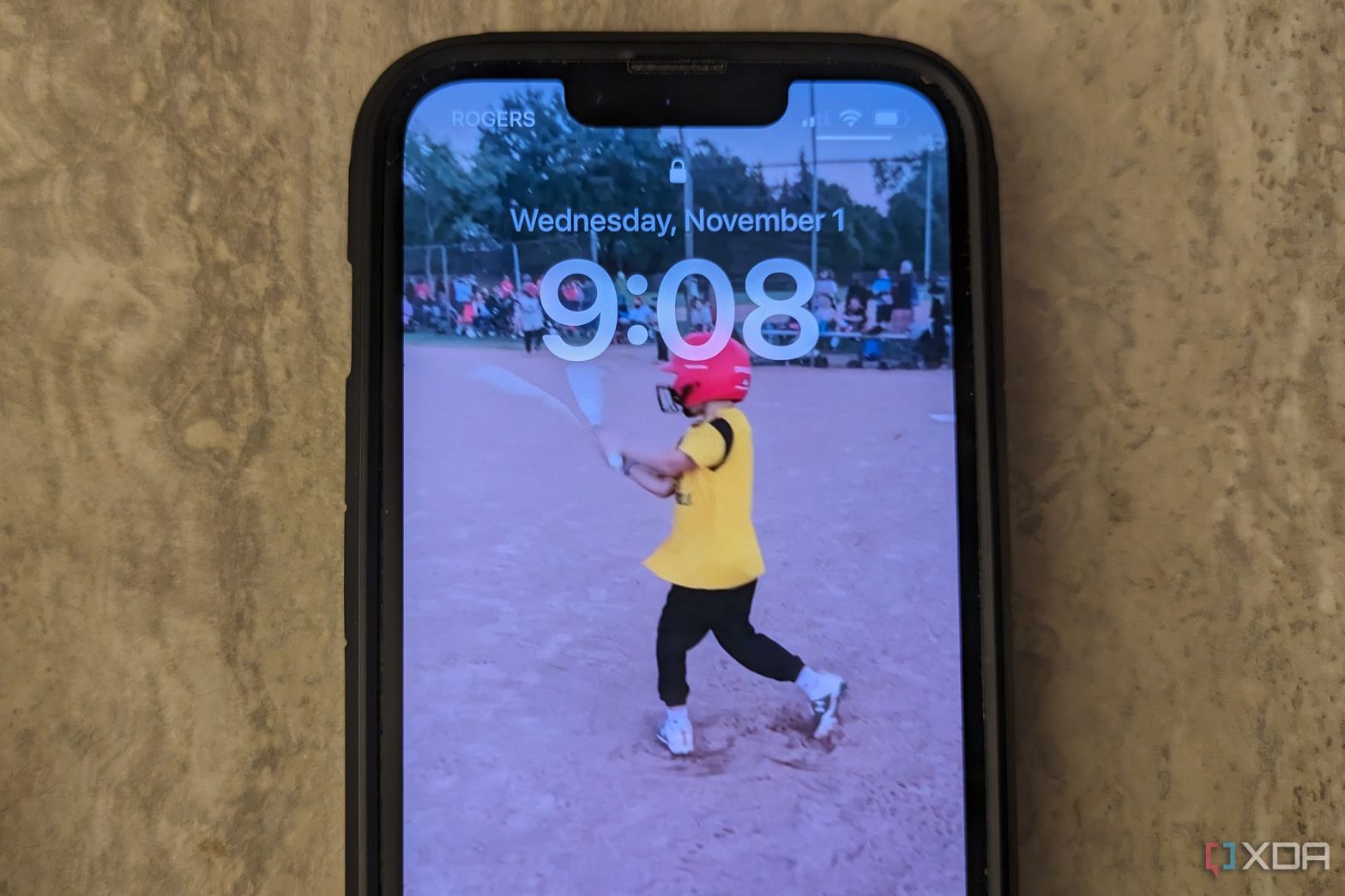
The ability to set a video as wallpaper on your iPhone is back with iOS 17

The ability to add Depth Effects to photos set as your iPhone wallpaper adds a really cool element to the already great iPhone experience. But did you know you can use video, specifically Live Photos, for your wallpaper? It’s simple, and once you learn how, you’ll have tons of fun switching it up and trying different ones.
How to set video as wallpaper on iPhone iOS
- You can either take a Live Photo, use an existing one, or convert an existing video into a Live Photo.
You need third-party software to turn an existing video into a Live Photo. There are lots of free options available, although Intolive is one of the most popular ones. You can also grab a video from TikTok and save it to your camera roll as a Live Photo.
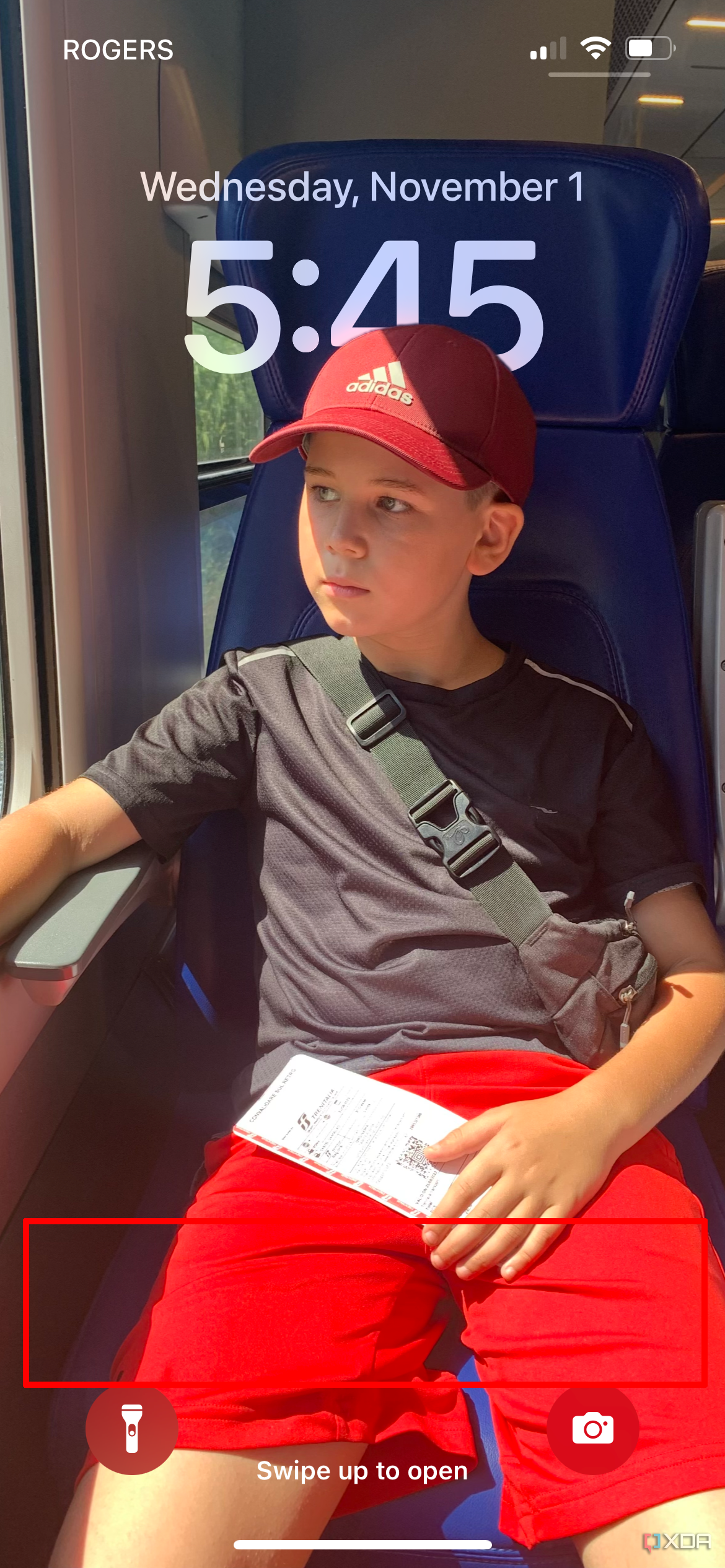
- Once you know which Live Photo you want to use, press near the bottom of the lock screen until the wallpaper menu comes up.
- Tap the + (plus) to add a new one. You can also go to Settings > Wallpaper > Add New Wallpaper.
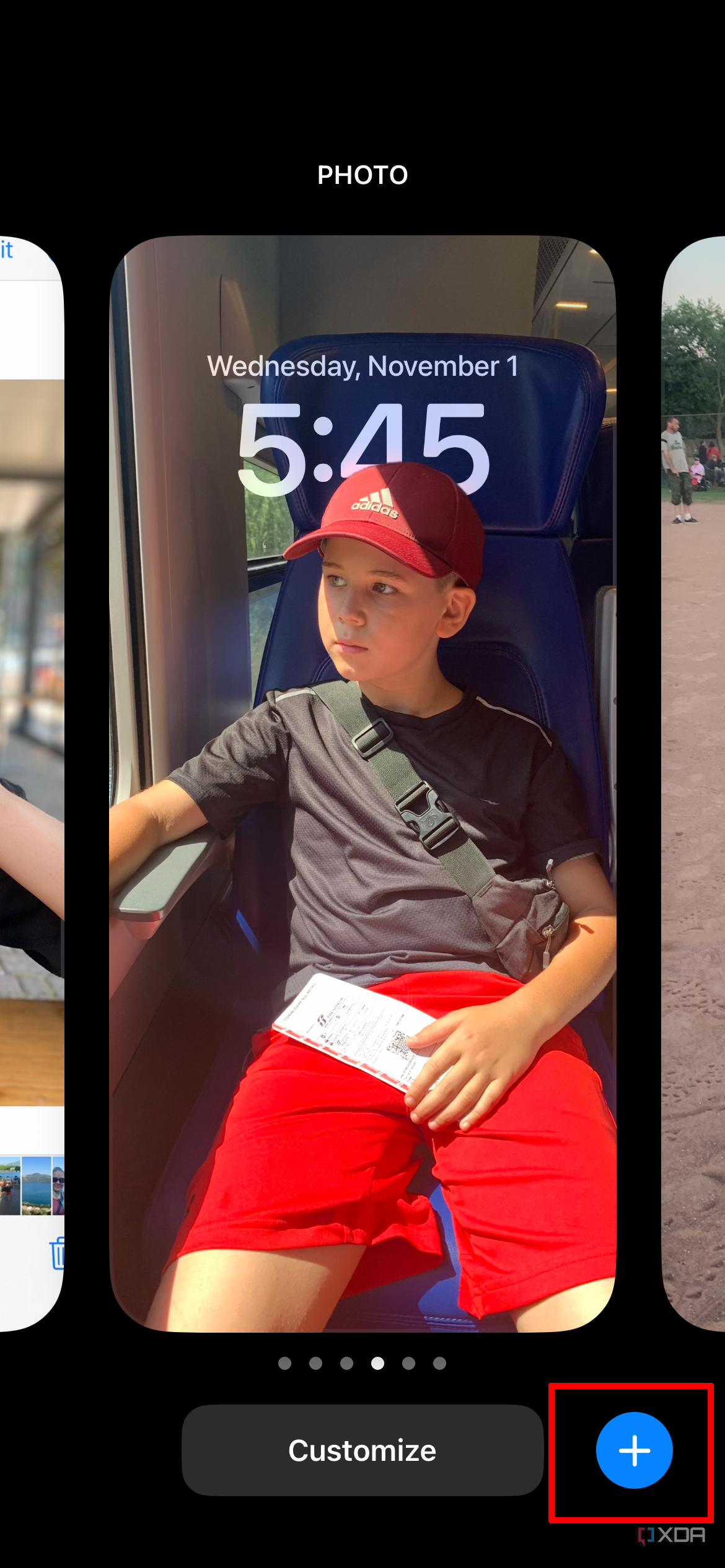
- In the top menu, select Live Photo.
- Choose the photo you want to set as the wallpaper.
- Zoom in and out of the photo using your thumb and index finger until you get it positioned just as you want it.
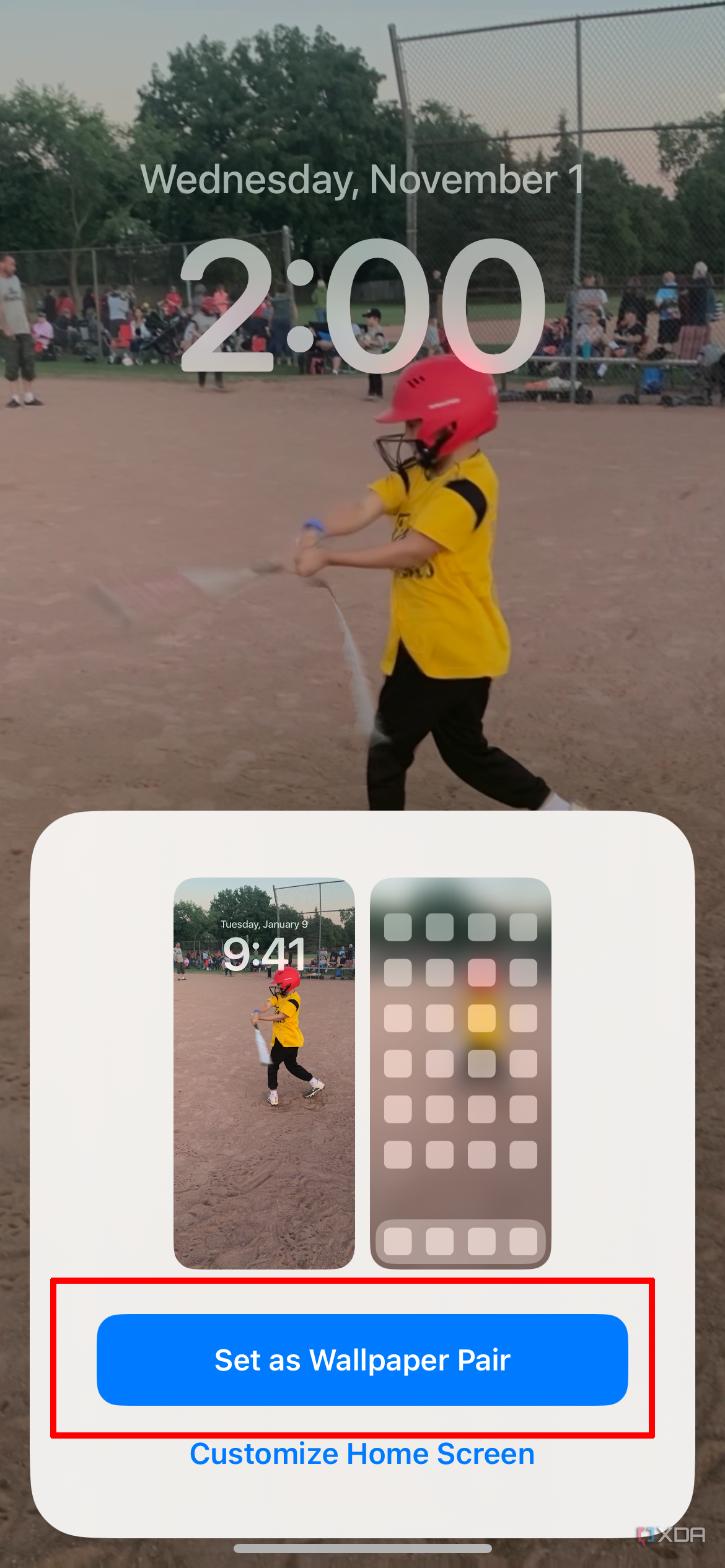
- Once it’s perfect, select Add.
- Select Set as Wallpaper Pair.
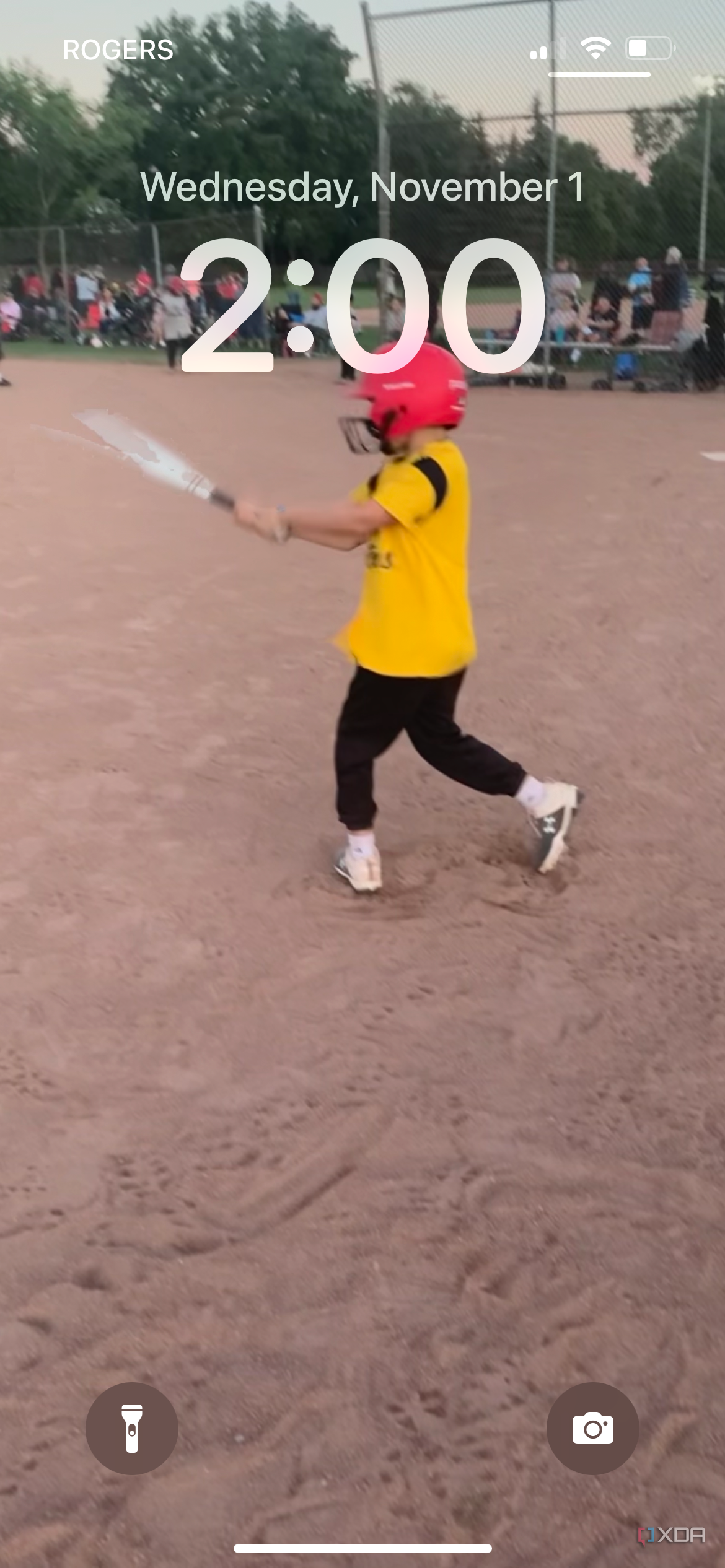
- That’s it! The Live Photo will play as a short, looping video whenever your lock screen is lit up and displayed.


How to create a Live Photo with the Intolive app
Once you get the hang of using your own existing Live Photos, you can create your own Live Photos from longer videos using an optional app. For the purposes of this guide, I’m using Intolive, but there are other free options available.
- Go to the App Store on your iPhone.
- Search for and download Intolive.
- Open the Intolive app.
- Select Live Wallpaper from the top menu.
- Allow access to your photo library, so it can see your videos.
- Scroll through your videos and choose the one you want to turn into a Live Photo.
- Trim the video using the slider at the bottom. (A notification advises that iOS 17 supports 1-2-second Live wallpapers.)
- Tap Done.
- You can now edit the video, doing things like removing audio, cropping, and even adding emoji and text.
- Once done, tap the Upload button. Your video is now saved as a Live Photo that can be used as wallpaper.
Have fun with Live Wallpapers!
The ability to use Live Photos as lock screen wallpaper on iPhone works on iPhone 6s models and later, including the latest phones like the iPhone 15 Pro Max. It was eliminated in iOS 16, reportedly because the long press on the lock screen to display the moving image interfered with the custom lock screen interface. But the feature is back with iOS 17, and you don’t need to press and hold for the Live Photo to play: it just plays automatically. This is much to the delight of iPhone users who love having a more interactive wallpaper on their devices.