
The long-anticipated 23H2 update for Windows 11 is finally here, which means that anyone running the version 22H2 release of Microsoft’s latest PC operating system can now install the new software. The upgrade process is, in fact, ridiculously seamless if you solely want to rely on Windows Update, but you can still install it manually if you so desire.
Of course, the best productivity laptops or pre-built gaming PCs come with an already configured OS out of the box, which means Windows is preinstalled, and you don’t need to worry about servicing the OS on your own. However, there are occasions when you might need to take the duty of manually installing Windows 11 updates all by yourself. Whatever your reason is, you can use our guide on how to perform an update to Windows 11 version 23H2 in a jiffy. We’ve also included a walkthrough for clean installing the full 23H2 release.
While the transition from 22H2 to 23H2 is a fairly quick process for Windows 11 users, it’s worth noting that some installation scenarios can be a fairly lengthy process, depending on the state of the target PC. So make sure you have enough time to wait it out.
Check your device meets the Windows 11 system requirements
There is no significant change in the system requirements for the 23H2 release (also known as the Windows 11 2023 Update) compared to version 22H2, as clarified by Microsoft back in September. These are the minimum specs needed to run Windows 11, so check that your device is capable:
- CPU: 1GHz or faster with two or more cores on a compatible 64-bit processor or system on chip (SoC)
- RAM: 4GB or more
- Storage: 64GB or more
- System firmware: UEFI, Secure Boot capable
- TPM: Trusted Platform Module (TPM) version 2.0
- GPU: Compatible with DirectX 12 or later with WDDM 2.0 driver
- Display: High definition (720p) display that is greater than 9 inches diagonally, 8 bits per color channel
Power users can install Windows 11 on almost any unsupported PC, which means you should be able to enjoy the 23H2 release on your trusty old tower.
Back up your PC
Before upgrading your OS, it’s vital that you set up a full backup of your PC so you don’t lose any valuable personal data if things go awry.
You can rely on the new Windows Backup app, but we also recommend you use some of the alternative backup solutions available so you have the peace of mind of knowing you have an off-site backup of your personal data.
How to download the 23H2 enablement package
Unlike the 21H2-to-22H2 saga, the 23H2 update for Windows 11 is available in the form of a miraculously small payload. According to Microsoft’s nomenclature, the format is called eKB, or “enablement package,” which is possible because version 23H2 (major build number 22631) is essentially built on the same code base as version 22H2 (major build number 22621).
To elaborate, the 22621 platform has already received all the features of its successor, but they’re marked dormant in the Windows Feature Store. To make them operational, Windows will need a special unlocking module, known as the enablement package. Installing this special update, aka KB5027397, will instantly activate the full set of new features. The rollout mechanism is rather fascinating because most of them have been enabled in the Moment 4 update for Windows 11 22H2 as pilot testing, leaving very little scope of stumbling upon any major roadblock.
Although Microsoft doesn’t offer a straightforward way to download the standalone enablement package, you can grab the suitable KB5027397 installer for your use case in both MSU and CAB formats from the table below:
How to install the 23H2 enablement package
You can have different user accounts on the same PC. Some of these accounts can be administrator accounts, and others might just be regular accounts. Keep in mind that manually installing Windows updates requires administrative privilege, so admin credentials might come in handy.
The enablement package can only be installed on 22621.2355 or above, so theoretically, you can sideload it on a PC running September’s Cumulative Update Preview for Windows 11 22H2 (22621.2361). However, for compatibility reasons, Microsoft recommends that you install it on top of the October Cumulative Update Preview, or 22621.2506.
In case you are still running the original release of Windows 11 (build 22000, known as 21H2), you have to upgrade to 22H2 first and install the necessary prerequisites as mentioned above. Only then can you proceed.
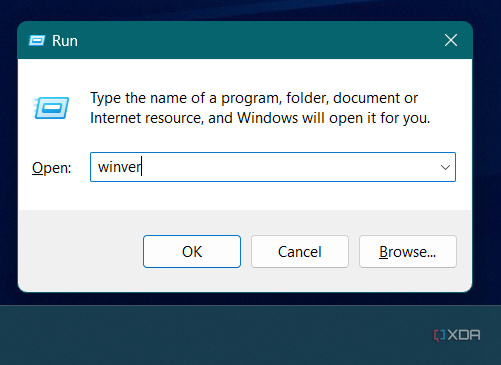
- Verify the currently installed build by pressing Windows + R, typing winver in the Run box, and selecting OK. Make sure that the OS Build is 22621.2361 or greater.
- Sideload the enablement package.
- Restart your PC.
- Let the OS complete the update process and then boot into Windows 11 version 23H2.

As time progresses, installing the 23H2 update will be almost as easy as any other update you might get for your PC. All you need to do is open the Settings app and click Windows Update in the side menu. Your PC should check for updates and install the package automatically, but you can also click Check for updates to try again. That said, the aforementioned method is still your best bet to cut down the waiting period and bypass the staggered rollout model.
How to boot and perform a fresh installation of Windows 11
If you don’t see the 23H2 update offered, it’s possible Microsoft has blocked your PC from upgrading temporarily due to a compatibility issue with one or more of your apps/drivers. In that case, you might encounter random bugs after sideloading the enablement package. In this scenario, a clean install can be useful.
Using the Media Creation Tool
Since some behind-the-scene polishing is required, you can’t use the venerable Media Creation Tool to download the 23H2 release at the time of publication. We’ll update this tutorial as soon as there are some positive developments at Microsoft’s end.
If you don’t want to deal with the MSU/CAB packages, you can always try the Windows 11 Installation Assistant. This is a small program Microsoft offers to help users download the latest version of Windows 11, which is now the 23H2 build.
To use the application, simply go to the Windows 11 download page on Microsoft’s website and then click the Download Now button under Windows 11 Installation Assistant.

From here, simply run the Installation Assistant and follow the steps to get the latest update. Keep in mind that this should work on both Windows 11 and Windows 10 PCs (as long as your PC supports Windows 11).
Using the Windows 11 version 23H2 ISO
Microsoft has refreshed its ISO portfolio for the 23H2 release of Windows, with 22631.2428 serving as the introductory build. Regular users can grab the ISO directly from the Windows 11 download page on Microsoft’s website. On the other hand, My Visual Studio (formerly known as MSDN) and Volume Licensing Service Center (VLSC) subscribers can download the updated ISOs from their respective portals.

After downloading the ISO, refer to our Windows 11 download and installation tutorial for preparing the bootable media and performing a clean installation.
By creating your own Windows 11 version 23H2 ISO from UUP
If you’re familiar with the Unified Update Platform (UUP), the process is much easier. If you’re looking to do it via UUP file sets or you want to create a more up-to-date ISO of Windows 11 version 23H2 than the one Microsoft currently offers, you can follow our guide to download and create Windows 11 (and Windows 10) installation media using UUP dump. For installation, the same steps from the previous section still apply.

One important aspect of preferring UUP over other methods is the scope of experimentation. For example, you can easily create the ARM64 installer for Windows 11 version 23H2 and start tinkering, whereas downloading the same as a ready-made ISO won’t be possible without paying a high subscription fee.
Final thoughts
And that’s about all you need to know if you want to manually install the Windows 11 version 23H2 on your PC. We generally recommend waiting for the new release to be offered normally through Windows Update, but if you’re eager to try out the fancy latest features, the methods mentioned above let you get it right now.