
Quick Links
Are you looking to upgrade the sound quality on your Windows 11 PC? Most computers ship with a basic sound setup, which means that the audio you hear — whether you’re listening to music, watching videos, or playing games — is fine but nowhere near as good as it could be.
For a more immersive sound experience, you’ll want to enable spatial audio, which makes it sound like your audio is filling the room around you. Rather than being fed into your ear from one direction, the audio feels like it exists in 3D to mimic true surround sound. It’s particularly impressive when watching movies or playing games since it adds a whole new level of realism. In this guide, we’ll show you how to set it up.
What you need to know about spatial audio on Windows 11

Source: Sony
Before we dive into enabling spatial audio on Windows 11, there are a couple of things to bear in mind. First, while Microsoft says that spatial audio works with all great headphones, TVs, home theater setups, and soundbars, the company’s own solution — Windows Sonic — is exclusively for headphones. For everything else, you’ll need to use Dolby Atmos and compatible hardware.
The major disadvantage to Dolby Atmos is that it’s not free to use. Your computer or sound device may have shipped with a trial of the feature, which will allow you to use it free for a period of time, but in many cases, you will eventually have to pay for an Atmos license.
In addition, some devices are better at 3D audio than others. If you don’t really notice an improvement after enabling spatial audio, it may be that the sound device you’re using wasn’t designed to deliver 3D audio.
Finally, not all content is suited to spatial audio, so you may find that certain things sound the same as they did before or worse. Movies, TV shows, and games that are typically created with multi-directional audio effects usually work best, whereas many music tracks that were released in simple stereo can produce mixed results.
How to set up spatial audio on Windows 11
To try out spatial audio for yourself in Windows 11, follow these steps:
- Right-click the Windows icon in the taskbar, then click Settings.
- Inside the Settings app, head to Home > Sound.
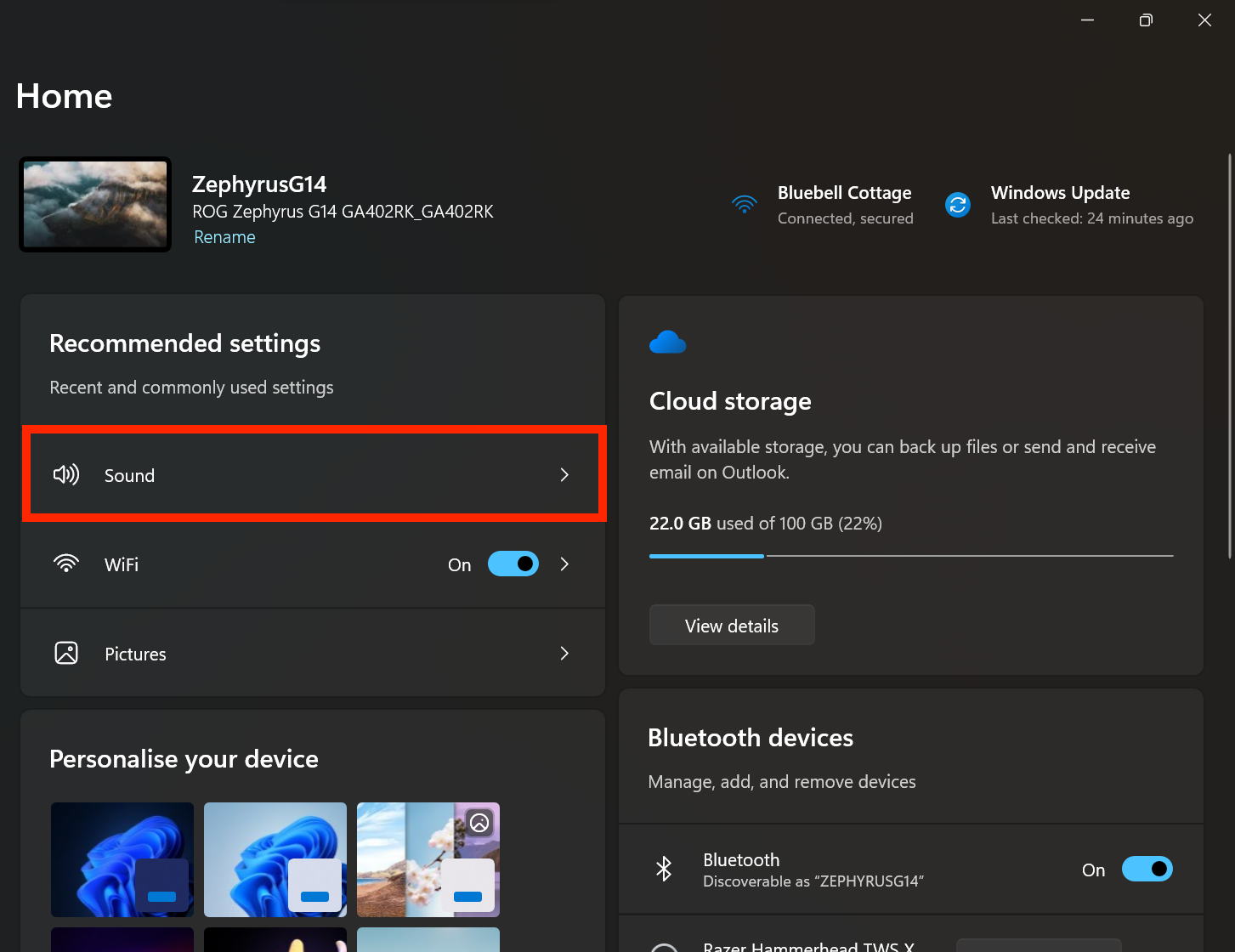
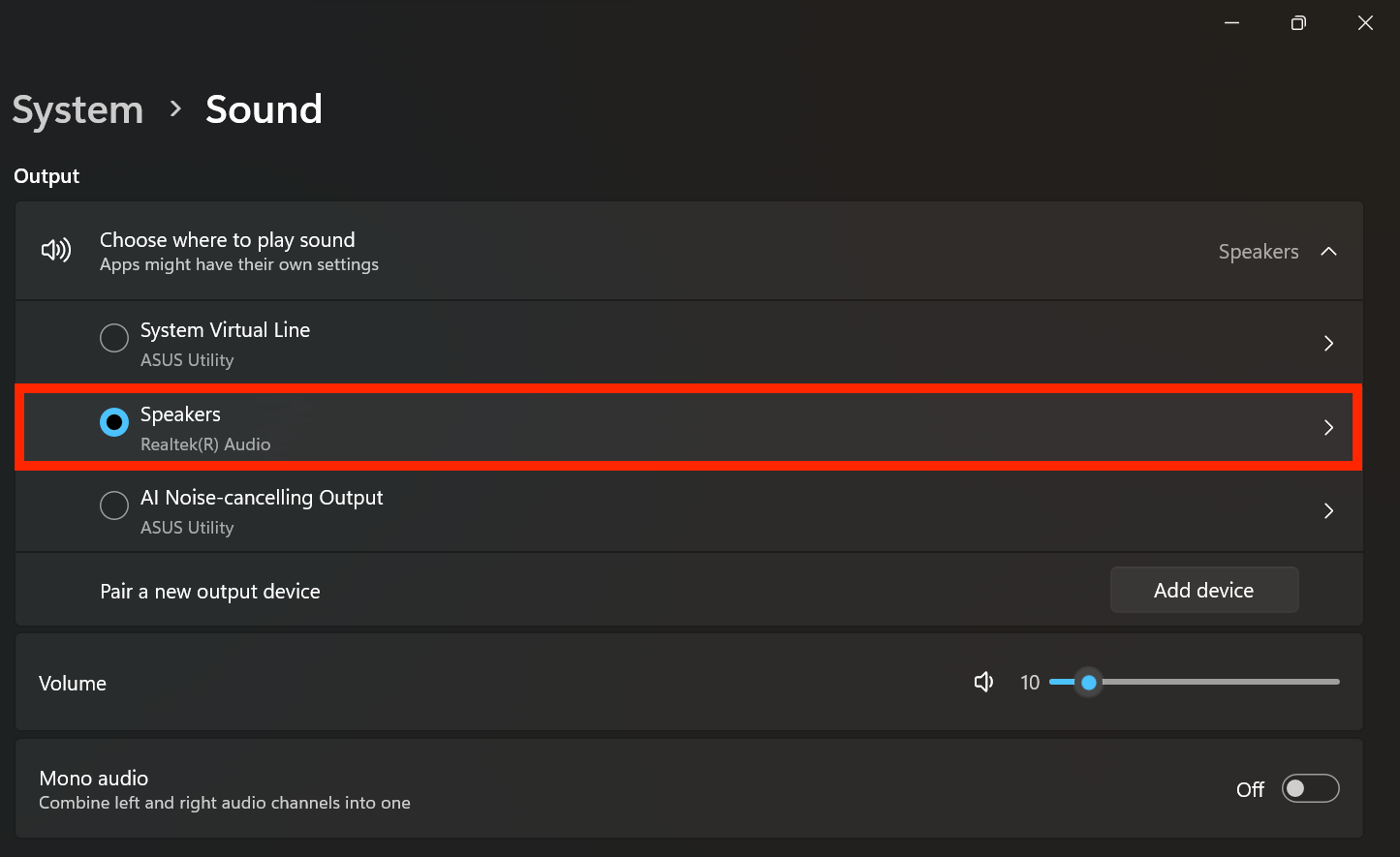
- Under Choose where to play sound, select your sound device.
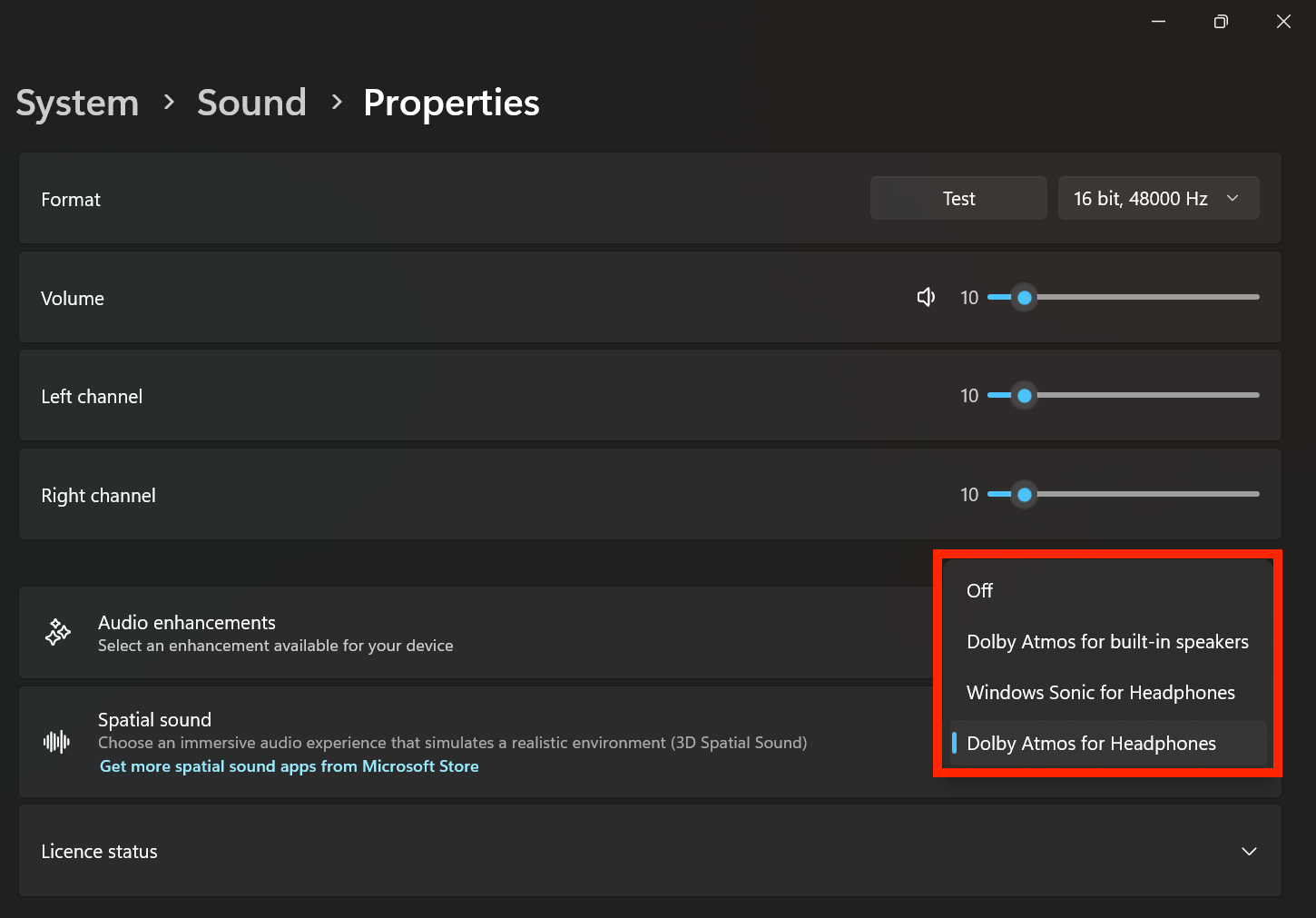
- Next to Spatial sound, select your desired spatial sound format.


You can also get faster access to your spatial audio settings by heading to the System Tray:
- Click the speaker icon in the Windows taskbar.
- Click the sound output button next to the volume slider.
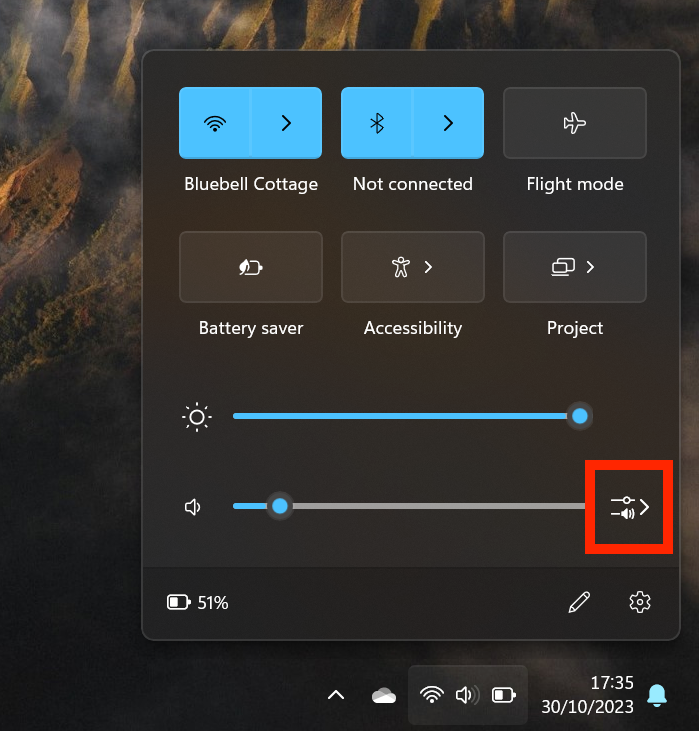
- In the sound output menu, select your desired spatial sound setting.
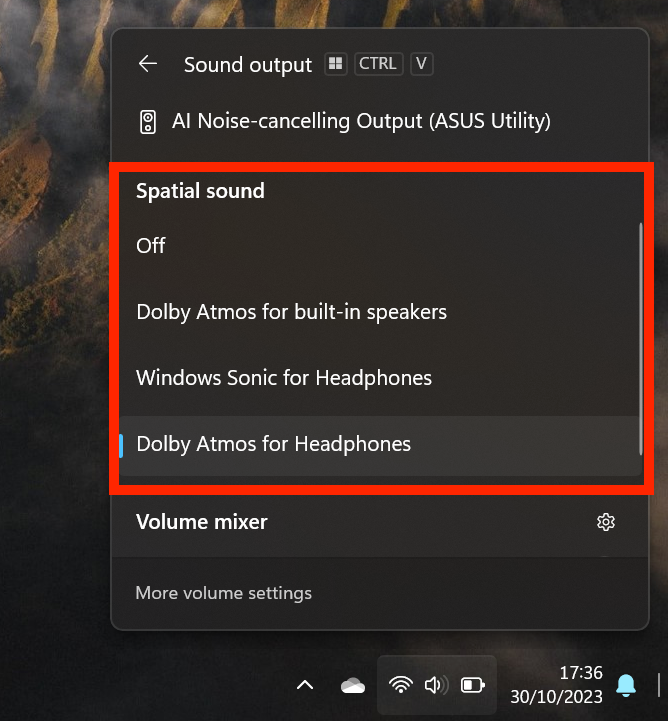


For most users, the spatial audio format you see will be Windows Sonic for Headphones, which is designed specifically for headphones. This is Microsoft’s own version of spatial sound, and it’s available to all users for free. However, if you have a fancier audio device — such as a high-end laptop or headphones — you may see other options.
For instance, some devices support Dolby Atmos, in which case, you should see Dolby Atmos for Headphones or Dolby Atmos for built-in speakers. We recommend using these options if they are available to you. Although they work in much the same way as Windows Sonic, they tend to be even more impressive, and they’re not exclusively for headphones.
Do you even need to change your sound on Windows?
The default sound setup on Windows 11 is acceptable, and if you don’t have a sound device that supports spatial audio, you can live with it. Plus, there are a lot of other ways to improve the audio on your PC. However, when you have what can be significant improvements at your fingertips, why not take advantage of them?
Enabling spatial audio is advisable if you watch a lot of movies or play games on your PC. It greatly enhances the experience by making it feel like you’re surrounded by sound. It’s particularly great with headphones and speakers that are designed for 3D audio, but your mileage will vary with other devices.